<?xml version="1.0" encoding="utf-8"?>
<feed xmlns="http://www.w3.org/2005/Atom">
  <title>阔海生与海</title>
  
  <subtitle>May the force be with you.</subtitle>
  <link href="http://kuohais.github.io/atom.xml" rel="self"/>
  
  <link href="http://kuohais.github.io/"/>
  <updated>2021-04-26T17:47:42.769Z</updated>
  <id>http://kuohais.github.io/</id>
  
  <author>
    <name>阔海生</name>
    
  </author>
  
  <generator uri="https://hexo.io/">Hexo</generator>
  
  <entry>
    <title>《我的建站笔记》 三</title>
    <link href="http://kuohais.github.io/2021/04/27/%E3%80%8A%E6%88%91%E7%9A%84%E5%BB%BA%E7%AB%99%E7%AC%94%E8%AE%B0%E3%80%8B%E4%B8%89/"/>
    <id>http://kuohais.github.io/2021/04/27/%E3%80%8A%E6%88%91%E7%9A%84%E5%BB%BA%E7%AB%99%E7%AC%94%E8%AE%B0%E3%80%8B%E4%B8%89/</id>
    <published>2021-04-26T17:39:12.714Z</published>
    <updated>2021-04-26T17:47:42.769Z</updated>
    
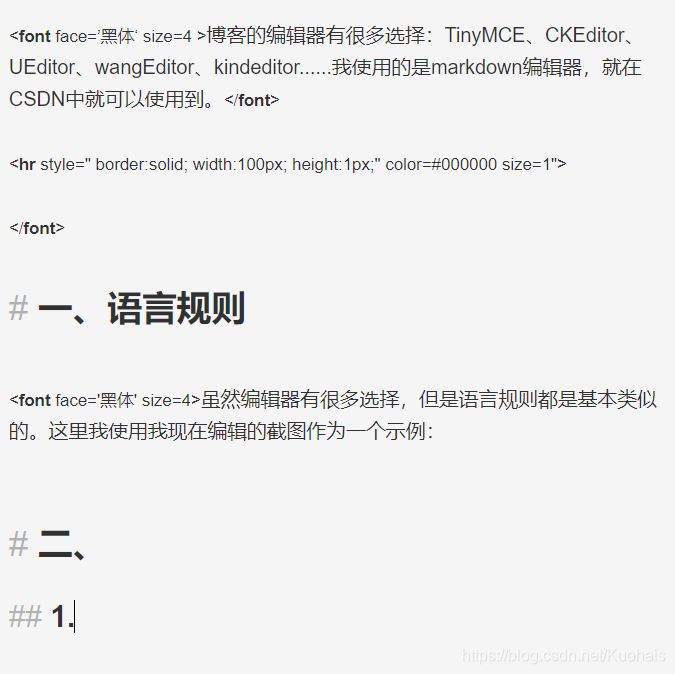
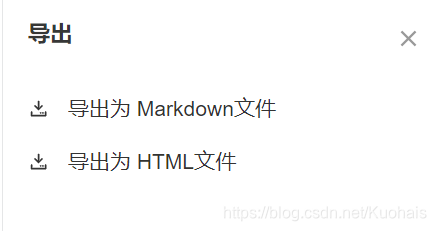
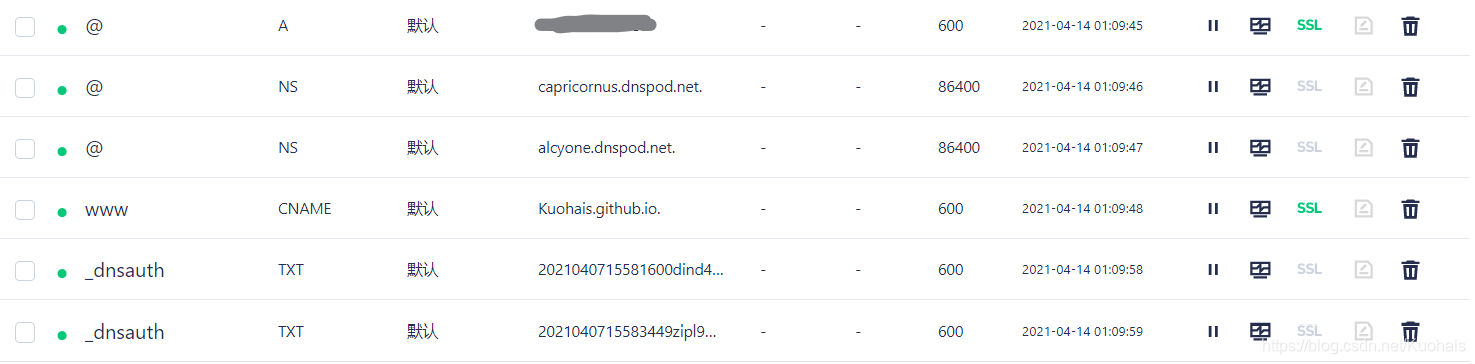
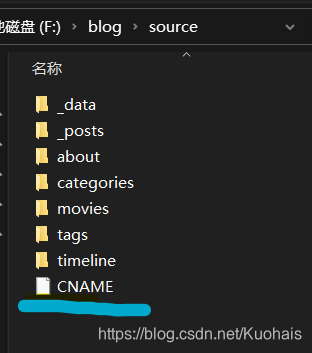
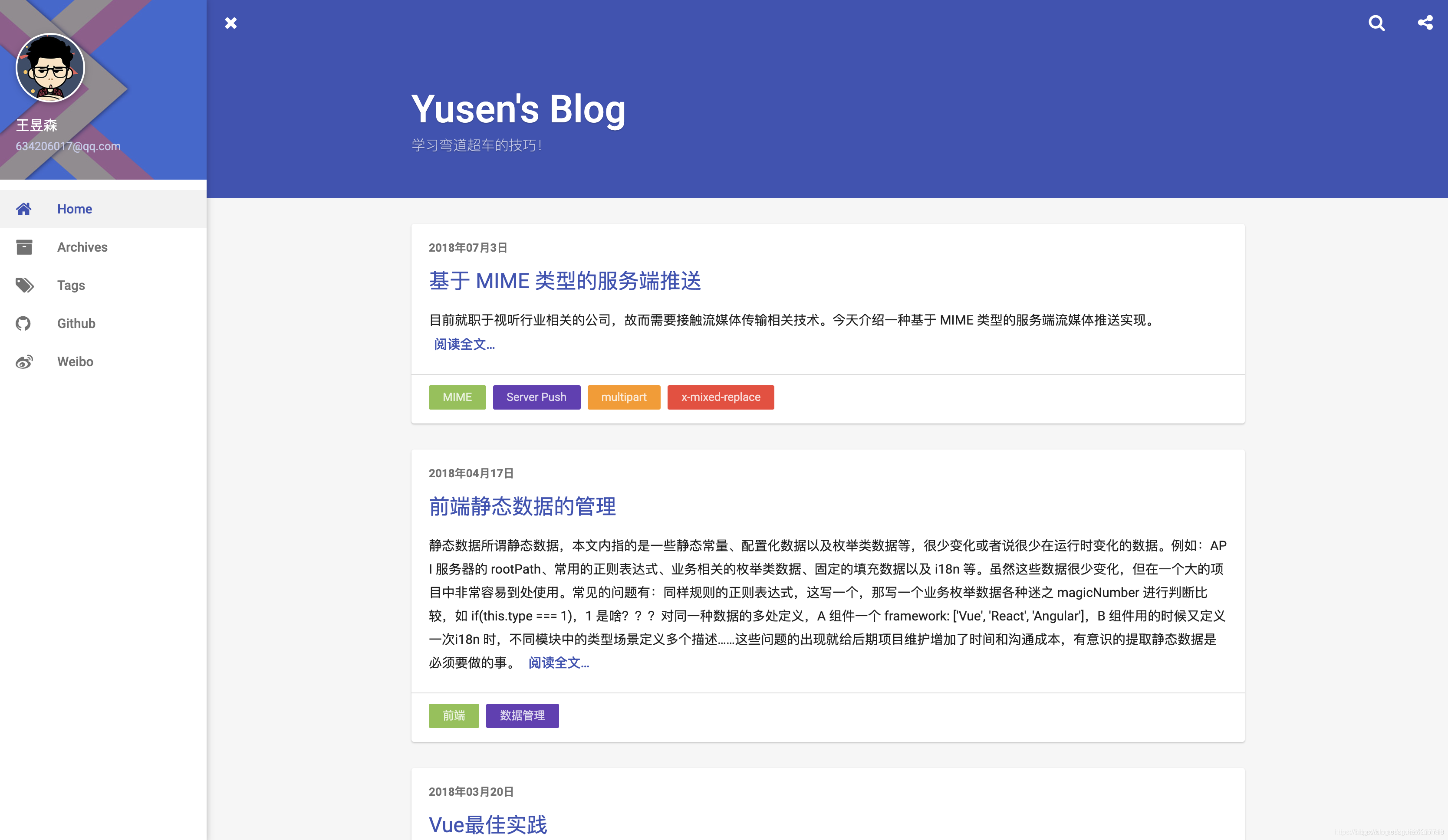
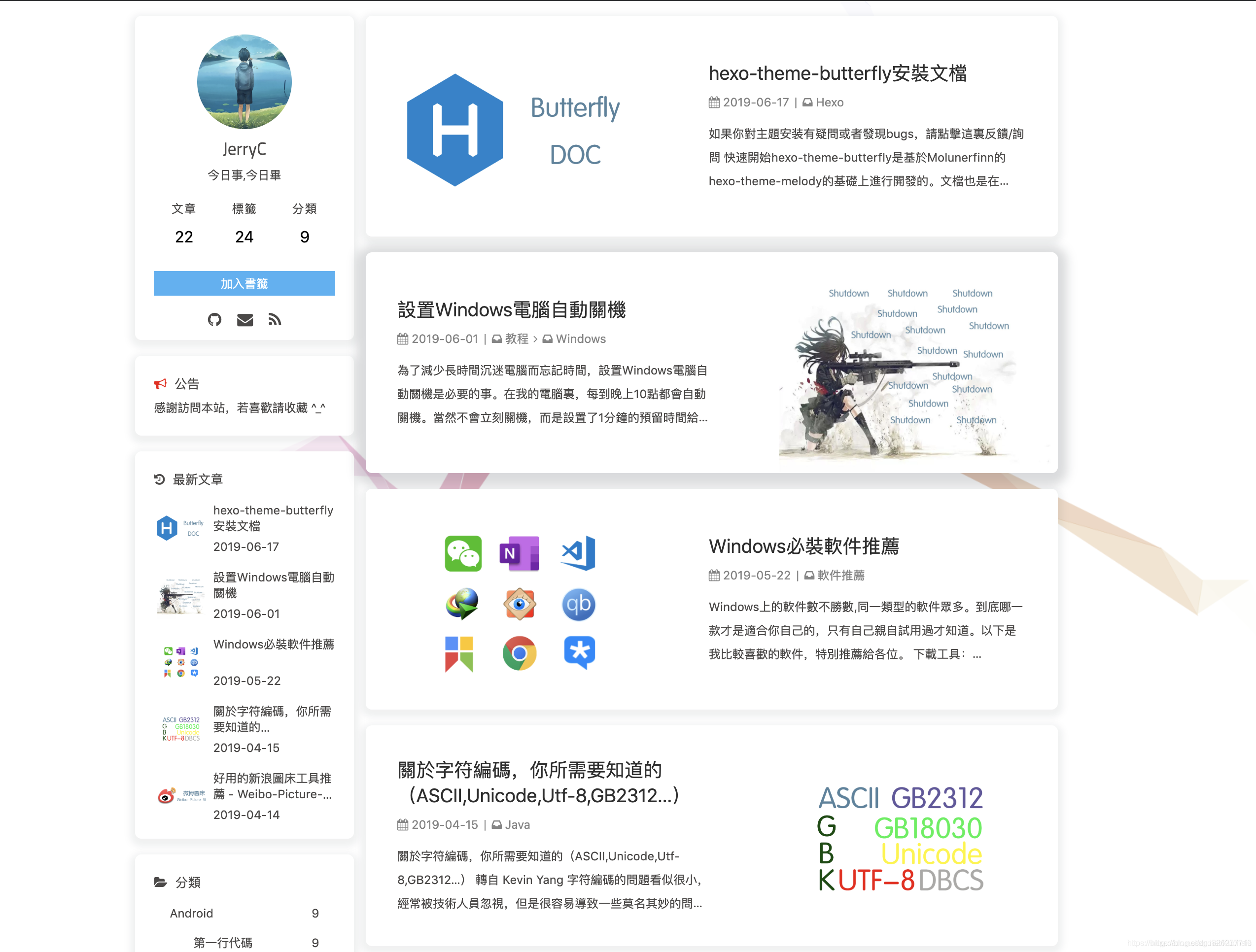
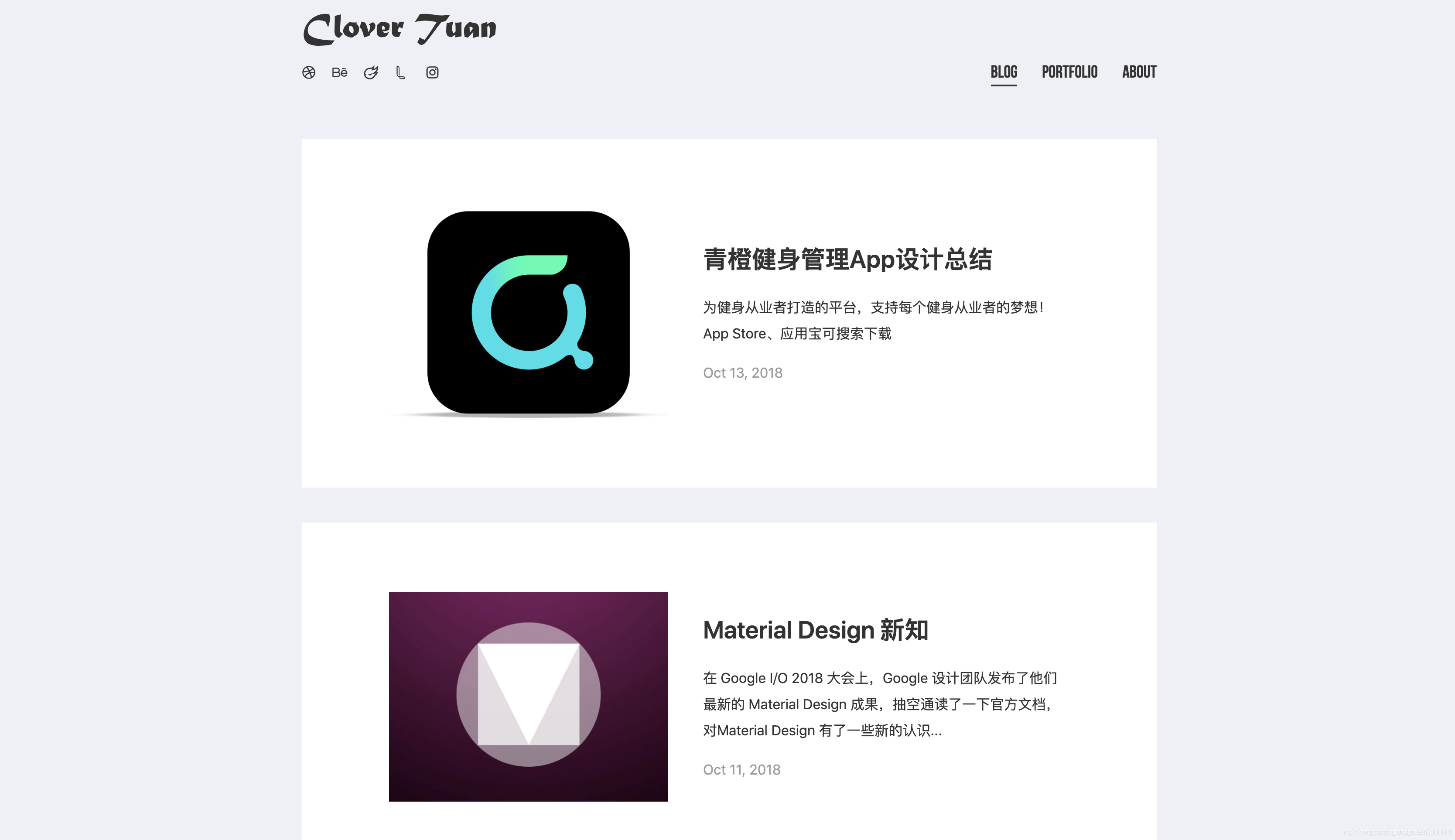
    <content type="html"><![CDATA[<link rel="stylesheet" class="aplayer-secondary-style-marker" href="\assets\css\APlayer.min.css"><script src="\assets\js\APlayer.min.js" class="aplayer-secondary-script-marker"></script><p><font color=skyblue size=4><em>作者：<strong>爱学习的海生</strong></em><br></font></p><p><font color=gray size=3>|如果一切顺利的话，现在你应该可以真正的“输出”了</p></font><hr style=" border:solid; width:100px; height:1px;" color=#000000 size=1"></font><h1 id="前言"><a href="#前言" class="headerlink" title="前言"></a>前言</h1><p><font face='黑体' size=4>博客的文章编辑器有很多选择：TinyMCE、CKEditor、UEditor、wangEditor、kindeditor……我使用的是markdown编辑器，就在CSDN中就可以使用到。</font></p><hr style=" border:solid; width:100px; height:1px;" color=#000000 size=1></font><h1 id="一、语言规则"><a href="#一、语言规则" class="headerlink" title="一、语言规则"></a>一、语言规则</h1><p><font face='黑体' size=4>虽然编辑器有很多选择，但是语言规则都是基本类似的。这里我使用我现在编辑的截图作为一个示例：<img src="https://img-blog.csdnimg.cn/20210427004123190.png?x-oss-process=image/watermark,type_ZmFuZ3poZW5naGVpdGk,shadow_10,text_aHR0cHM6Ly9ibG9nLmNzZG4ubmV0L0t1b2hhaXM=,size_16,color_FFFFFF,t_70" alt="就是这样"><br>CSDN上的编辑可以实时查看输出状态，还是相当方便的。其中</p><figure class="highlight c"><table><tr><td class="gutter"><pre><span class="line">1</span><br></pre></td><td class="code"><pre><span class="line">&lt;font face=<span class="string">&#x27;&#x27; color=&#x27;</span><span class="string">&#x27; size=&#x27;</span><span class="string">&#x27; &gt;</span></span><br></pre></td></tr></table></figure><p>就是一个基本的编辑文本样式的语句，加在每一段字体前面即可。别忘了当段落结束后或者要更改一次格式前加上</p><figure class="highlight c"><table><tr><td class="gutter"><pre><span class="line">1</span><br></pre></td><td class="code"><pre><span class="line">&lt;/font&gt;</span><br></pre></td></tr></table></figure><p>这是表示结束上一个格式。在使用HTML、CSS等时，这是基本格式（我真啰嗦）。<br>ps：color使用的是颜色代码，你可以点击<a href="http://xh.5156edu.com/page/z1015m9220j18754.html">这个网站</a>查看相关代码编号<br></font></p><h1 id="二、文章的放置"><a href="#二、文章的放置" class="headerlink" title="二、文章的放置"></a>二、文章的放置</h1><p><font face='黑体' size=4 >写好的文章需要根据你的文章类型归类。<br>首先是要将文章从你的编辑器到处，这里以markdown为例：<img src="https://img-blog.csdnimg.cn/20210427005203143.png?x-oss-process=image/watermark,type_ZmFuZ3poZW5naGVpdGk,shadow_10,text_aHR0cHM6Ly9ibG9nLmNzZG4ubmV0L0t1b2hhaXM=,size_16,color_FFFFFF,t_70"><br>导出为Markdonw文件即可，保存后点开文件所在位置，将文件复制到你的blog根目录下的/source/posts里，并且打开编辑，在文章前面加上：</p><figure class="highlight c"><table><tr><td class="gutter"><pre><span class="line">1</span><br><span class="line">2</span><br><span class="line">3</span><br><span class="line">4</span><br><span class="line">5</span><br></pre></td><td class="code"><pre><span class="line">---</span><br><span class="line">title: 《标题》</span><br><span class="line">cover: /img/cover.jpg <span class="comment">//这里填写你的文件名，img是blog中的而非主题中的</span></span><br><span class="line">categories: 《你的目录名称》</span><br><span class="line">---</span><br></pre></td></tr></table></figure></font><font color=red size=3>ps:这里也要在冒号后面加一个空格,/img就在/blog的/public中</font><h1 id="三、上传至互联网"><a href="#三、上传至互联网" class="headerlink" title="三、上传至互联网"></a>三、上传至互联网</h1><h2 id="1、将更改保存到本地"><a href="#1、将更改保存到本地" class="headerlink" title="1、将更改保存到本地"></a>1、将更改保存到本地</h2><p><font face='黑体' size=4>使用之前提到的方法保存到本地即可：</p><figure class="highlight c"><table><tr><td class="gutter"><pre><span class="line">1</span><br><span class="line">2</span><br></pre></td><td class="code"><pre><span class="line">$ hexo c</span><br><span class="line">$ hexo g</span><br></pre></td></tr></table></figure><p>这一步可以方便你首先在本地里查看文章发布之后在网站上的样子。<br></font></p><h2 id="2、更改域名"><a href="#2、更改域名" class="headerlink" title="2、更改域名"></a>2、更改域名</h2><p><font face='黑体' size=4>首先，在网上买一个自己喜欢的域名。<br><a href="https://cloud.tencent.com/act/domainsales?fromSource=gwzcw.4248465.4248465.4248465&utm_medium=cpc&utm_id=gwzcw.4248465.4248465.4248465">腾讯域名</a><br><img src="https://img-blog.csdnimg.cn/20210427011508273.png?x-oss-process=image/watermark,type_ZmFuZ3poZW5naGVpdGk,shadow_10,text_aHR0cHM6Ly9ibG9nLmNzZG4ubmV0L0t1b2hhaXM=,size_16,color_FFFFFF,t_70" alt="在这里插入图片描述"><br><a href="https://sg.godaddy.com/zh/offers/domains/godaddy-nb?isc=gennbacn22&countryview=1&currencyType=CNY&utm_source=baidu&utm_medium=cpc&utm_term=%E5%9F%9F%E5%90%8D&utm_campaign=zh-cn_dom_sem_ni_nb_x_ph_001&utm_content=%E5%9F%9F%E5%90%8D&gclid=CMqymuK0nPACFdpBwgUdRVkMNQ&gclsrc=ds">GoDaddy</a><br><img src="https://img-blog.csdnimg.cn/20210427011723107.png?x-oss-process=image/watermark,type_ZmFuZ3poZW5naGVpdGk,shadow_10,text_aHR0cHM6Ly9ibG9nLmNzZG4ubmV0L0t1b2hhaXM=,size_16,color_FFFFFF,t_70" alt="在这里插入图片描述"><br>还有很多网站可以购买，我比较推荐腾讯的域名，价格不算贵，而且种类很多。<br>这里以我买的腾讯域名为例。<br>在腾讯云买好后，进入域名解析页面：<br><img src="https://img-blog.csdnimg.cn/20210427012114884.png?x-oss-process=image/watermark,type_ZmFuZ3poZW5naGVpdGk,shadow_10,text_aHR0cHM6Ly9ibG9nLmNzZG4ubmV0L0t1b2hhaXM=,size_16,color_FFFFFF,t_70" alt="在这里插入图片描述"><br>1、照着这个界面设置就好，其中第四行是设置你的github地址，格式为：yourgithubname.github.io<br>2、第一行是你的IP地址，打开npm，输入以下：</p><figure class="highlight c"><table><tr><td class="gutter"><pre><span class="line">1</span><br></pre></td><td class="code"><pre><span class="line">$ npm config get registry http:<span class="comment">//你的github地址</span></span><br></pre></td></tr></table></figure><p>之后复制到你的第一行即可<br>3、第四行的’CNAME‘需要你在你的根目录（/blog)的/source下建立一个同名的文件，如图：<br><img src="https://img-blog.csdnimg.cn/20210427013115689.png?x-oss-process=image/watermark,type_ZmFuZ3poZW5naGVpdGk,shadow_10,text_aHR0cHM6Ly9ibG9nLmNzZG4ubmV0L0t1b2hhaXM=,size_16,color_FFFFFF,t_70" alt="在这里插入图片描述"><br>你可以以记事本的方式新建，然后删掉所有后缀，将文件名命名为CNAME即可，用编码软件（vsc）打开，写入你的域名名称（其他什么都不用写），如你的域名为：abcd.com，那么就如此写即可，不用加www.。<br></font></p><hr style=" border:solid; width:100px; height:1px;" color=#000000 size=1"></font><h1 id="问题总结"><a href="#问题总结" class="headerlink" title="问题总结"></a>问题总结</h1><p><font face='黑体' size=4>下一张我再介绍如何部署加速器吧，码字好累。<br></font></p><p><font color=red>Q:为什么我的域名打不开或打开后不是我的博客网站？<br></font></p><p><font color=skyblue>A:1、网页有一定的延迟，可以等一会儿再看能否打开；<br>2、检查你是否上传成功，hexo d是上传命令，要显示成功才行；<br>3、IP地址一定要正确，确保你是设置的你的github地址。<br></font></p>]]></content>


    <summary type="html">&lt;link rel=&quot;stylesheet&quot; class=&quot;aplayer-secondary-style-marker&quot; href=&quot;\assets\css\APlayer.min.css&quot;&gt;&lt;script src=&quot;\assets\js\APlayer.min.js&quot; cla</summary>


    <category term="《我的建站笔记》" scheme="http://kuohais.github.io/categories/%E3%80%8A%E6%88%91%E7%9A%84%E5%BB%BA%E7%AB%99%E7%AC%94%E8%AE%B0%E3%80%8B/"/>
    
    
  </entry>
  
  <entry>
    <title>《我的建站笔记》 二</title>
    <link href="http://kuohais.github.io/2021/04/12/%E3%80%8A%E6%88%91%E7%9A%84%E5%BB%BA%E7%AB%99%E7%AC%94%E8%AE%B0%E3%80%8B%E4%BA%8C/"/>
    <id>http://kuohais.github.io/2021/04/12/%E3%80%8A%E6%88%91%E7%9A%84%E5%BB%BA%E7%AB%99%E7%AC%94%E8%AE%B0%E3%80%8B%E4%BA%8C/</id>
    <published>2021-04-12T15:53:45.779Z</published>
    <updated>2021-04-26T17:48:44.792Z</updated>
    
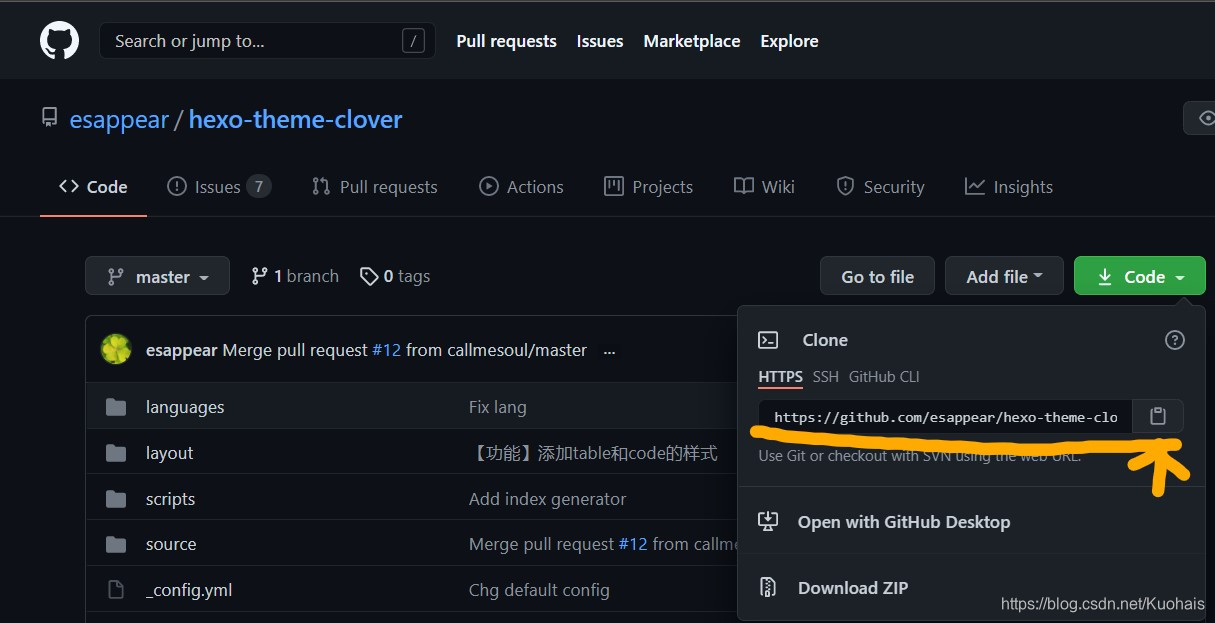
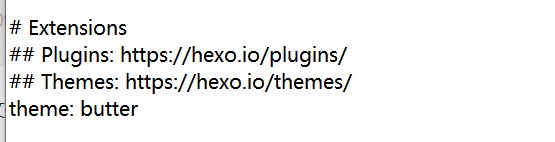
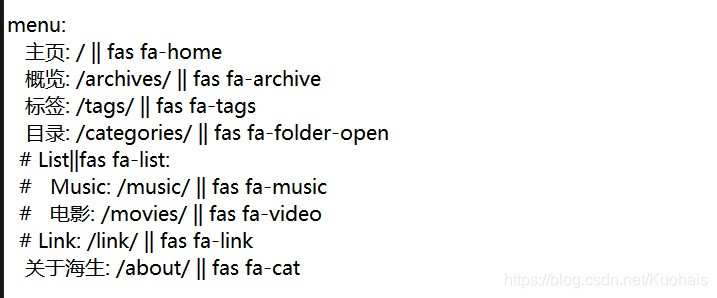
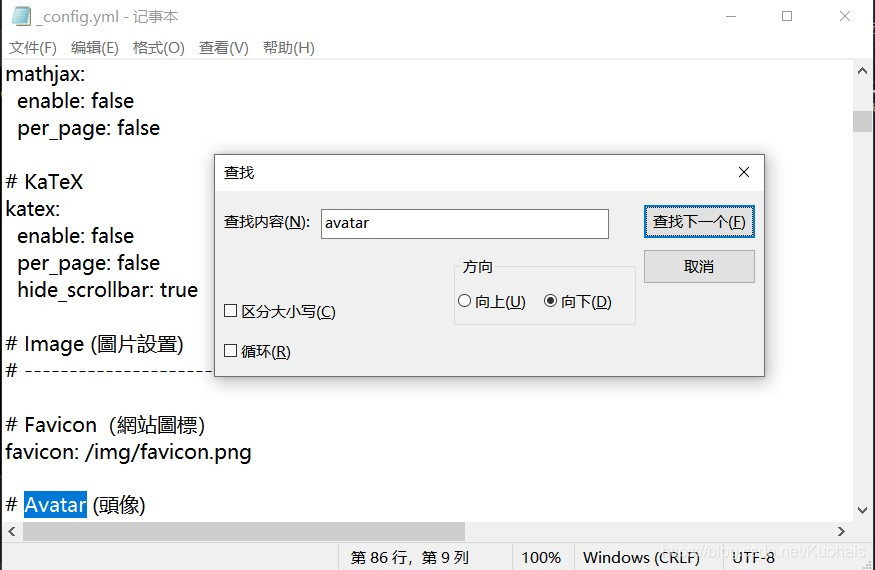
    <content type="html"><![CDATA[<link rel="stylesheet" class="aplayer-secondary-style-marker" href="\assets\css\APlayer.min.css"><script src="\assets\js\APlayer.min.js" class="aplayer-secondary-script-marker"></script><p><font color=skyblue size=4><em>作者：<strong>爱学习的海生</strong></em><br></font></p><p><font color=gray size=3>|进行到这里，你应该已经有了一个基本的网页结构了。但是现在什么内容都没有</p></font><hr style=" border:solid; width:100px; height:1px;" color=#000000 size=1"></font><h1 id="前言"><a href="#前言" class="headerlink" title="前言"></a>前言</h1><p><font face='黑体' size=4>你的个性化定制就从这里开始吧。</font></p><hr style=" border:solid; width:100px; height:1px;" color=#000000 size=1></font><h1 id="一、修改你的主题"><a href="#一、修改你的主题" class="headerlink" title="一、修改你的主题"></a>一、修改你的主题</h1><p><font face='黑体' size=4>其实参考别人写的教程来看，修改主题并不是放在最前面的，但是经过我自身的实践来看。如果是想快速的搭建好一个个性化的网站的话，先使用一个合适的主题是很有帮助的，可以避免一些不必要的步骤。<br></font></p><h2 id="1-选择主题"><a href="#1-选择主题" class="headerlink" title="1.选择主题"></a>1.选择主题</h2><p><font face='黑体' size=4>那么，我在这里提供一些主题的git hub地址（当然你可以在百度搜索栏直接搜索“hexo 主题”会有相当多的推荐）<br><a href="https://blog.csdn.net/zgd826237710/article/details/99671027#Indigo_2">indigo主题</a><br><img src="https://img-blog.csdnimg.cn/20210412204044497.png?x-oss-process=image/watermark,type_ZmFuZ3poZW5naGVpdGk,shadow_10,text_aHR0cHM6Ly9ibG9nLmNzZG4ubmV0L0t1b2hhaXM=,size_16,color_FFFFFF,t_70"><br><a href="https://blog.csdn.net/zgd826237710/article/details/99671027#Butterfly_9">Butterfly主题</a><br><img src="https://img-blog.csdnimg.cn/20210412204204493.png?x-oss-process=image/watermark,type_ZmFuZ3poZW5naGVpdGk,shadow_10,text_aHR0cHM6Ly9ibG9nLmNzZG4ubmV0L0t1b2hhaXM=,size_16,color_FFFFFF,t_70"><br><a href="https://blog.csdn.net/zgd826237710/article/details/99671027#Clover_39">Clover主题</a><br><img src="https://img-blog.csdnimg.cn/20210412204331126.png?x-oss-process=image/watermark,type_ZmFuZ3poZW5naGVpdGk,shadow_10,text_aHR0cHM6Ly9ibG9nLmNzZG4ubmV0L0t1b2hhaXM=,size_16,color_FFFFFF,t_70"></p></font><h2 id="2-调用主题"><a href="#2-调用主题" class="headerlink" title="2.调用主题"></a>2.调用主题</h2><font face='黑体' size=4><p>使用这些主题到你的hexo，<br>首先在github上复制地址：<br><img src="https://img-blog.csdnimg.cn/20210412204947249.jpg?x-oss-process=image/watermark,type_ZmFuZ3poZW5naGVpdGk,shadow_10,text_aHR0cHM6Ly9ibG9nLmNzZG4ubmV0L0t1b2hhaXM=,size_16,color_FFFFFF,t_70#pic_center" alt="参考位置"></p></font><font face='黑体' size=4><p>然后只需按照以下格式键入代码：</p><figure class="highlight c"><table><tr><td class="gutter"><pre><span class="line">1</span><br></pre></td><td class="code"><pre><span class="line">$ git clone <span class="string">&#x27;你在github上复制得到的地址&#x27;</span> themes/<span class="string">&#x27;你的主题名字&#x27;</span></span><br></pre></td></tr></table></figure><p>这么做使得你的根目录（blog）下会得到一个以themes命名的文件夹，方便以后更改。<br>接着在你的根目录下使用 git bash here，<br>键入如下代码：</p><figure class="highlight c"><table><tr><td class="gutter"><pre><span class="line">1</span><br></pre></td><td class="code"><pre><span class="line">$ notepad _config.yml <span class="comment">//notepad表示你要打开这个文件类型的软件，notepad是系统自带的文本编辑器，快捷方便无需下载</span></span><br></pre></td></tr></table></figure><p>然后个性化你的选项：<br><img src="https://img-blog.csdnimg.cn/20210412205418439.jpg?x-oss-process=image/watermark,type_ZmFuZ3poZW5naGVpdGk,shadow_10,text_aHR0cHM6Ly9ibG9nLmNzZG4ubmV0L0t1b2hhaXM=,size_16,color_FFFFFF,t_70#pic_center"></p></font><p><font color=red>注意：每个冒号后面都要加一个英文空格，否则无法识别。</p></font><font face='黑体' size=4><p>接下来调用你的主题：<img src="https://img-blog.csdnimg.cn/20210412205626215.jpg#pic_center"><br>这里原本是landscape，删除掉重新键入你的主题名称即可。</p></font><h1 id="二、主题的相关配置"><a href="#二、主题的相关配置" class="headerlink" title="二、主题的相关配置"></a>二、主题的相关配置</h1><h2 id="1-配置任务栏"><a href="#1-配置任务栏" class="headerlink" title="1.配置任务栏"></a>1.配置任务栏</h2><font face='黑体' size=4><p>因为每个主题的内置配置都不大一样，这里我选择我使用的 <em>butterfly</em> 来展示。<br>找到你的主题根目录，及带有你主题名字的文件夹里，使用 git bash here，键入：</p><figure class="highlight c"><table><tr><td class="gutter"><pre><span class="line">1</span><br></pre></td><td class="code"><pre><span class="line">$ notepad _config.yml </span><br></pre></td></tr></table></figure><p><img src="https://img-blog.csdnimg.cn/20210412210239563.jpg?x-oss-process=image/watermark,type_ZmFuZ3poZW5naGVpdGk,shadow_10,text_aHR0cHM6Ly9ibG9nLmNzZG4ubmV0L0t1b2hhaXM=,size_16,color_FFFFFF,t_70#pic_center" alt="找到menu"><br>这里定义你的菜单栏。一定要删去 # 才能使用相应操作（#表示注释）。同样的，每个冒号后面要（至少）打一个空格。<br>你可以将冒号前内容改成中文，但本质依然按英文的释义来对应相关菜单标签。<br>fas fa-xxx是fontawesome的使用标志。你可以在此<a href="https://fontawesome.com/">fontawesome</a>找到你喜欢的图标来使用。 </p></font><p><font color=skyblue>与此同时，  </p></font><p><font face='黑体' size=4>打开hexo根目录的git bash here，运行并打开config.yml，输入：</p><figure class="highlight c"><table><tr><td class="gutter"><pre><span class="line">1</span><br><span class="line">2</span><br></pre></td><td class="code"><pre><span class="line">$ hexo g</span><br><span class="line">$ hexo s</span><br></pre></td></tr></table></figure><p>然后在浏览器打开你的本地网页，就可以实时看到你成功修改的内容了，未成功的话会在gitbash的页面显示错误信息，顺藤摸瓜修改即可。</p></font><h2 id="2-图片设置"><a href="#2-图片设置" class="headerlink" title="2.图片设置"></a>2.图片设置</h2><p><font face='黑体' size=4>找到你的主题根目录，依然是打开config文件，然后找到你的avatar设置区（按ctrl+F即可实现快速搜索）。<img src="https://img-blog.csdnimg.cn/20210412231803948.jpg?x-oss-process=image/watermark,type_ZmFuZ3poZW5naGVpdGk,shadow_10,text_aHR0cHM6Ly9ibG9nLmNzZG4ubmV0L0t1b2hhaXM=,size_16,color_FFFFFF,t_70#pic_center"></p><p>按照这个格式的路径找到你的头像（要提前找到你选择的图片并改好后缀，保存到主题根目录的/source/img里）img即可：/img/avatar.jpg（注意在冒号后面加上空格）</p><p>同理，可以设置你的网站背景等等，都保存在该文件夹下。</p><p>最后，别忘了清理和生成，</p><figure class="highlight c"><table><tr><td class="gutter"><pre><span class="line">1</span><br><span class="line">2</span><br></pre></td><td class="code"><pre><span class="line">$ hexo c</span><br><span class="line">$ hexo g</span><br></pre></td></tr></table></figure></font><hr style=" border:solid; width:100px; height:1px;" color=#000000 size=1><h1 id="总结"><a href="#总结" class="headerlink" title="总结"></a>总结</h1><p><font face='黑体' size=4>只要明白了格式上的规矩，就可以自己在主题的config.yml里自由查找内容并进行编辑个性化设置。</p><hr style=" border:solid; width:100px; height:1px;" color=#000000 size=1></font><h1 id="问题总结"><a href="#问题总结" class="headerlink" title="问题总结"></a>问题总结</h1><p><font color=red>Q:我的notepad打不开config.yml或者还有别的打开方式吗？</p></font><p><font color=skyblue>A:还可以使用VSC、VS等等方式。本人会在之后的更新中补充更多的编辑方式（非前端类型专业学生，求体谅😥）。</p></font><p><font color=red>Q:我的config.yml更改好了格式（空格打了，缩进关系也是正确的）但还是显示不对，怎么破？</p></font><p><font color=skyblue>A:这种问题本人也遇到过，有时候删减/增加空格以及整理一下换行关系就能解决。如果实在不行就可以删除主题文件，重新下载一个，这个过程只需要不到1min。</p></font>]]></content>


    <summary type="html">&lt;link rel=&quot;stylesheet&quot; class=&quot;aplayer-secondary-style-marker&quot; href=&quot;\assets\css\APlayer.min.css&quot;&gt;&lt;script src=&quot;\assets\js\APlayer.min.js&quot; cla</summary>


    <category term="《我的建站笔记》" scheme="http://kuohais.github.io/categories/%E3%80%8A%E6%88%91%E7%9A%84%E5%BB%BA%E7%AB%99%E7%AC%94%E8%AE%B0%E3%80%8B/"/>
    
    
  </entry>
  
  <entry>
    <title>《我的建站笔记》 一</title>
    <link href="http://kuohais.github.io/2021/04/12/%E3%80%8A%E6%88%91%E7%9A%84%E5%BB%BA%E7%AB%99%E7%AC%94%E8%AE%B0%E3%80%8B%E4%B8%80/"/>
    <id>http://kuohais.github.io/2021/04/12/%E3%80%8A%E6%88%91%E7%9A%84%E5%BB%BA%E7%AB%99%E7%AC%94%E8%AE%B0%E3%80%8B%E4%B8%80/</id>
    <published>2021-04-12T15:48:40.942Z</published>
    <updated>2021-04-17T07:42:19.527Z</updated>
    
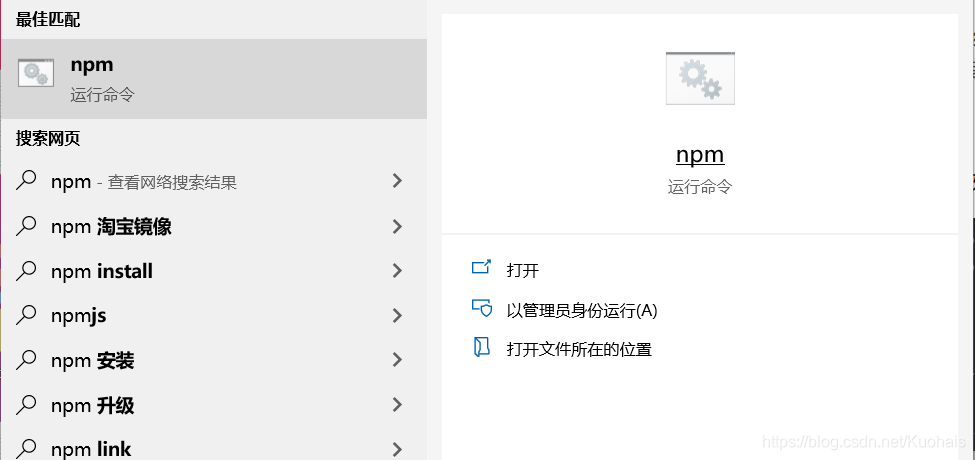
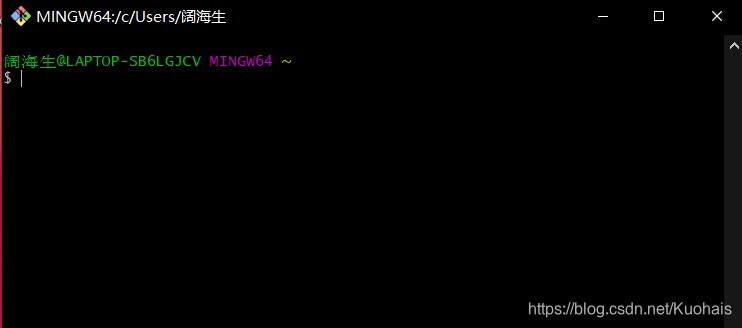
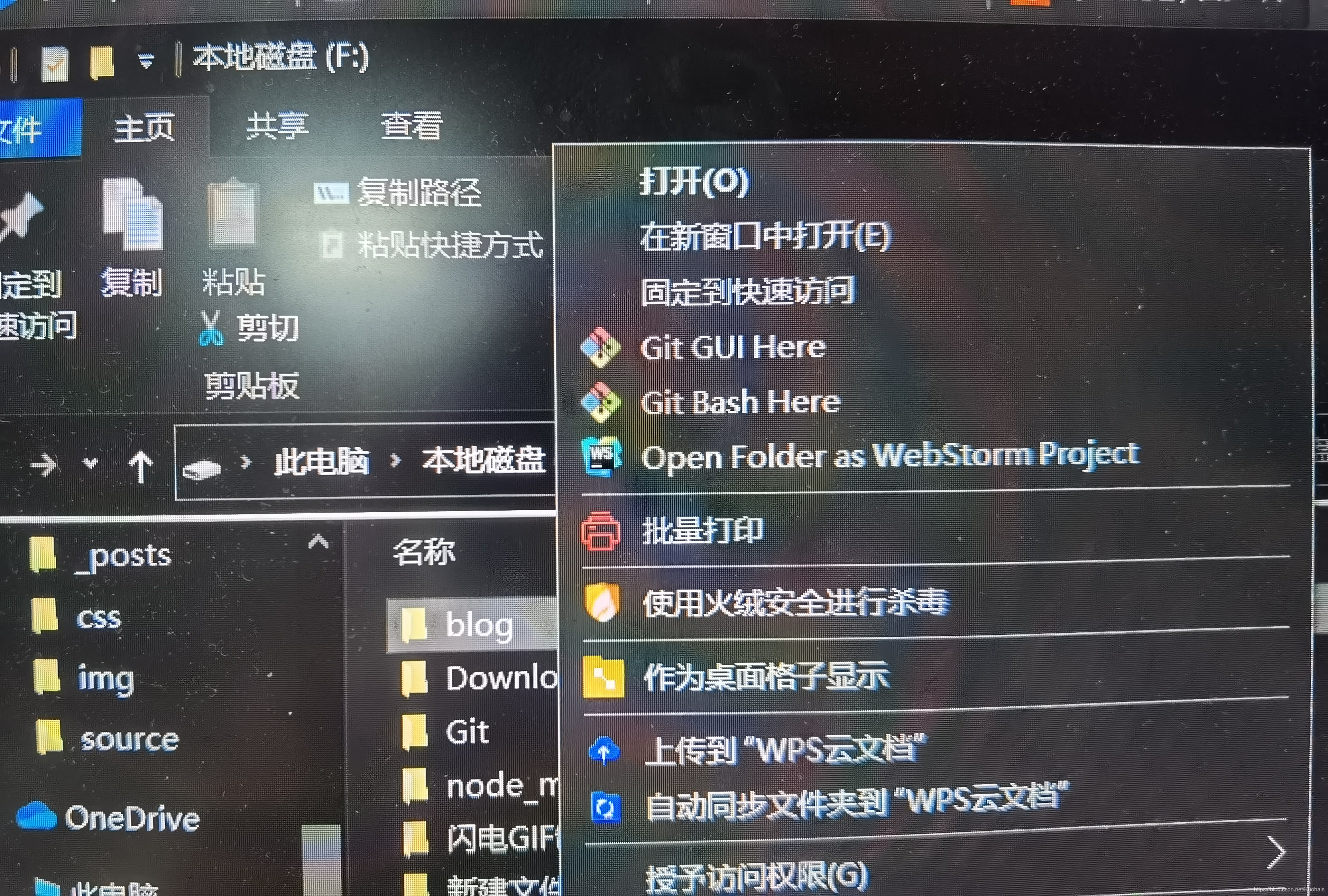
    <content type="html"><![CDATA[<link rel="stylesheet" class="aplayer-secondary-style-marker" href="\assets\css\APlayer.min.css"><script src="\assets\js\APlayer.min.js" class="aplayer-secondary-script-marker"></script><p><font color=skyblue size=4><em>作者：<strong>爱学习的海生</strong></em></p></font><p><font color=#999AAA size=3>|梦开始的地方，哭了</p></font><hr style=" border:solid; width:100px; height:1px;" color=#000000 size=1"></font><h1 id="前言"><a href="#前言" class="headerlink" title="前言"></a>前言</h1><p><font face='黑体' size=4>或许你跟我一样受不了公众号的各种限制（或许也是一种方便），或许你手边正好有一台电脑。那么你就可以搭建一个博客，这个过程并不繁琐和困难。<br></font></p><hr style=" border:solid; width:100px; height:1px;" color=#000000 size=1"></font><h1 id="一、hexo是什么？"><a href="#一、hexo是什么？" class="headerlink" title="一、hexo是什么？"></a>一、hexo是什么？</h1><font face='黑体' size=4><p>hexo是一个用于搭建博客网站的框架，官方的特征语是：“快速、简洁且高效的博客框架。”<a href="https://hexo.io/zh-cn/">hexo官网</a>。</p></font><h1 id="二、安装HEXO及必要插件"><a href="#二、安装HEXO及必要插件" class="headerlink" title="二、安装HEXO及必要插件"></a>二、安装HEXO及必要插件</h1><h2 id="1-安装前提"><a href="#1-安装前提" class="headerlink" title="1.安装前提"></a>1.安装前提</h2><font face='黑体' size=4>需要先安装下列应用程序即可：<p><a href="https://nodejs.org/en/">Node.js</a> (Node.js 版本需不低于 10.13，建议使用 Node.js 12.0 及以上版本)<br><a href="http://git-scm.com/">Git</a>（可以默认创建桌面的快捷方式，以方便后续的使用）<br>此时不妨前往git hub官网注册一个自己的账号<a href="https://github.com/">git hub</a>这样可以在下载时节约时间。</p><p>如果您的电脑中已经安装上述必备程序，那么恭喜您！你可以直接前往 安装 Hexo 步骤。<br></font></p><h2 id="2-安装HEXO"><a href="#2-安装HEXO" class="headerlink" title="2.安装HEXO"></a>2.安装HEXO</h2><p><font face='黑体' size=4>打开你的npm，<img src="https://img-blog.csdnimg.cn/20210411154436425.png?x-oss-process=image/watermark,type_ZmFuZ3poZW5naGVpdGk,shadow_10,text_aHR0cHM6Ly9ibG9nLmNzZG4ubmV0L0t1b2hhaXM=,size_16,color_FFFFFF,t_70#pic_center" alt="以管理员身份运行"></p><p>然后输入代码如下：</p><figure class="highlight c"><table><tr><td class="gutter"><pre><span class="line">1</span><br></pre></td><td class="code"><pre><span class="line">$ npm install -g hexo-cli</span><br></pre></td></tr></table></figure></font><p><font color=gray><em>tips</em>：第一个字符$仅为标志，无需输入<br></font></p><h2 id="3-安装淘宝镜像"><a href="#3-安装淘宝镜像" class="headerlink" title="3.安装淘宝镜像"></a>3.安装淘宝镜像</h2><p><font face='黑体' size=4>代码如下（示例）：</p><figure class="highlight c"><table><tr><td class="gutter"><pre><span class="line">1</span><br></pre></td><td class="code"><pre><span class="line">npm install -g cnpm --registry=http:<span class="comment">//registry.npm.taobao.org</span></span><br></pre></td></tr></table></figure></font><p><font color=gray><em>tips</em>：此处安装你可能会看到一个进度条，但安装成功与否看最后命令提示。如果未成功可以再次输入代码尝试。<br></font></p><font face='黑体' size=4><p>安装好之后可以使用：</p><figure class="highlight c"><table><tr><td class="gutter"><pre><span class="line">1</span><br></pre></td><td class="code"><pre><span class="line">hexo v<span class="comment">//查看版本信息 </span></span><br></pre></td></tr></table></figure><p>官方强烈建议使用最新版的hexo。享受最新最全的功能，但相应的会迎来一些适配、稳定方面的问题。此处看个人喜好。</p></font><hr style=" border:solid; width:100px; height:1px;" color=#000000 size=1"><h2 id="4-创建blog文件夹"><a href="#4-创建blog文件夹" class="headerlink" title="4.创建blog文件夹"></a>4.创建blog文件夹</h2><p><font face='黑体' size=4>安装好了一切之后，需要给你的hexo一个专门的文件夹以免和其他数据混乱。输入如下代码：</p><figure class="highlight c"><table><tr><td class="gutter"><pre><span class="line">1</span><br></pre></td><td class="code"><pre><span class="line">mkdir blog<span class="comment">//创建blog文件夹，这个名字可以自定义，但不建议</span></span><br></pre></td></tr></table></figure><figure class="highlight c"><table><tr><td class="gutter"><pre><span class="line">1</span><br></pre></td><td class="code"><pre><span class="line">cd blog<span class="comment">//进入到你的博客文件夹</span></span><br></pre></td></tr></table></figure></font><p><font color=gray><em>tips</em>:’cd‘可以帮助你传送到相应的文件夹或者盘，前提是要使用正确的路径，路径可以在如图所示位置进行查找。<img src="https://img-blog.csdnimg.cn/20210411162053612.jpg#pic_center"><br></font></p><hr style=" border:solid; width:100px; height:1px;" color=#000000 size=1"><h2 id="5-生成本地HEXO预览页面"><a href="#5-生成本地HEXO预览页面" class="headerlink" title="5.生成本地HEXO预览页面"></a>5.生成本地HEXO预览页面</h2><p><font face='黑体' size=4>此时你的电脑桌面已经有了Git Bash<br><img src="https://img-blog.csdnimg.cn/20210411162931587.jpg#pic_center" alt="软件图标"><br>试着打开，界面应为这样：<br><img src="https://img-blog.csdnimg.cn/20210411163048692.jpg?x-oss-process=image/watermark,type_ZmFuZ3poZW5naGVpdGk,shadow_10,text_aHR0cHM6Ly9ibG9nLmNzZG4ubmV0L0t1b2hhaXM=,size_16,color_FFFFFF,t_70#pic_center"></p><p>这就表示你成功安装并能运行git bash了，那么接下来关掉这个页面😂，找到你的blog文件夹如图点击：Git Bash here <img src="https://img-blog.csdnimg.cn/20210411164523107.jpg?x-oss-process=image/watermark,type_ZmFuZ3poZW5naGVpdGk,shadow_10,text_aHR0cHM6Ly9ibG9nLmNzZG4ubmV0L0t1b2hhaXM=,size_16,color_FFFFFF,t_70#pic_center" alt="因为这个二级页面截不了图我就只好照相了..."><br>然后就可以舒服地键入如下代码：</p><figure class="highlight c"><table><tr><td class="gutter"><pre><span class="line">1</span><br><span class="line">2</span><br><span class="line">3</span><br><span class="line">4</span><br><span class="line">5</span><br><span class="line">6</span><br><span class="line">7</span><br><span class="line">8</span><br></pre></td><td class="code"><pre><span class="line">$ hexo init <span class="comment">//生成博客，并初始化</span></span><br><span class="line">$ hexo s <span class="comment">//启动本地博客服务</span></span><br><span class="line">$ hexo n <span class="string">&quot;我的第一篇文章&quot;</span> <span class="comment">//创建你的文章，可以自定义名字</span></span><br><span class="line">$ hexo c <span class="comment">//清理，不会删除你的必要文件请放心使用</span></span><br><span class="line">$ hexo g <span class="comment">//生成，每一次要部署到你的网站上时都要输入</span></span><br><span class="line">$ hexo s <span class="comment">//启动，开启本地的服务地址。</span></span><br><span class="line"><span class="comment">//出现如下代码就表示开启成功</span></span><br><span class="line">INFO  Hexo is running at http:<span class="comment">//localhost:4000 . Press Ctrl+C to stop.</span></span><br></pre></td></tr></table></figure><p>然后在你的服务器上输入 localhost:4000 即可。<br>这个时候你的博客界面就诞生了！🎉<br></font></p><h1 id="问题解决："><a href="#问题解决：" class="headerlink" title="问题解决："></a>问题解决：</h1><p><font color=red>Q:我的localhost:4000 打不开怎么办？</font></p><p><font color=skyblue>A:更改你的地址试试：</p><figure class="highlight c"><table><tr><td class="gutter"><pre><span class="line">1</span><br></pre></td><td class="code"><pre><span class="line">$ hexo s -p <span class="number">5000</span></span><br></pre></td></tr></table></figure></font><p><font color=skyblue>或者点击<a href="https://blog.csdn.net/lairyi/article/details/89818386">localhost打不开</a><br></font></p><p><font color=red>Q:下载Node.js和Git太慢怎么办？<br></font></p><p><font color=skyblue>A:使用npm下载试试。</p><figure class="highlight c"><table><tr><td class="gutter"><pre><span class="line">1</span><br></pre></td><td class="code"><pre><span class="line">$ npm install git-core</span><br></pre></td></tr></table></figure></font>]]></content>


    <summary type="html">&lt;link rel=&quot;stylesheet&quot; class=&quot;aplayer-secondary-style-marker&quot; href=&quot;\assets\css\APlayer.min.css&quot;&gt;&lt;script src=&quot;\assets\js\APlayer.min.js&quot; cla</summary>


    <category term="《我的建站笔记》" scheme="http://kuohais.github.io/categories/%E3%80%8A%E6%88%91%E7%9A%84%E5%BB%BA%E7%AB%99%E7%AC%94%E8%AE%B0%E3%80%8B/"/>
    
    
  </entry>
  
</feed>